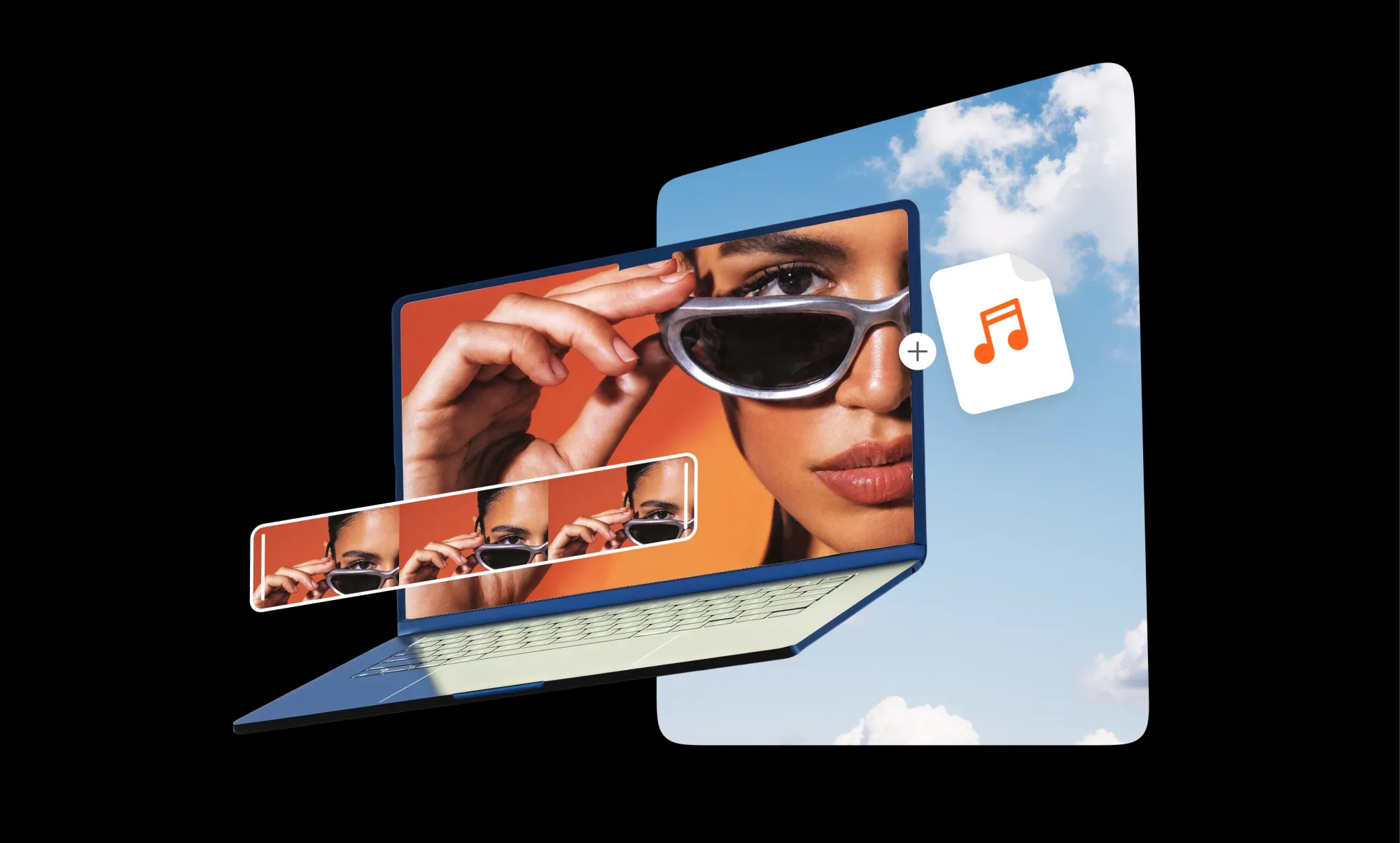
Mac users have always had great video editing software.
You can make quick edits in iMovie, build professional projects in Final Cut Pro, color grade like a filmmaker in DaVinci Resolve, or live inside Adobe Premiere if you already use Creative Cloud.
But here’s the thing: a lot of creators today are not trying to become full-time video editors.
Most people just want to make good videos faster.
Maybe you’re creating TikToks, Reels, YouTube Shorts, product demos, tutorials, launch videos, podcast clips, or AI-generated content. You probably do not want to spend weeks learning a complicated timeline editor just to publish a 20-second social video.
That’s why online and AI-powered video editing software for Mac is becoming much more popular.
Instead of jumping between separate tools for generation, captions, resizing, audio cleanup, and editing, creators now want workflows that feel faster and less overwhelming. Open the browser, start with an idea, let AI help with the heavy lifting, polish the video, and export.
Professional desktop editors still matter, of course. Final Cut Pro, DaVinci Resolve, and Adobe Premiere are incredible for advanced editing, long-form YouTube videos, color grading, and professional post-production.
But not every workflow needs film-level complexity.
Sometimes the best video editor for Mac is simply the one that helps you get from “I have an idea” to “this is ready to post” with the least amount of friction.
So in this guide, we’re breaking down the best video editing software for Mac right now, including professional desktop editors, browser-based tools, and AI-powered video editors that are changing how creators work in 2026.
What is the best video editing software for Mac right now?
The best video editing software for Mac depends on what kind of videos you actually make. If you want fast, AI-powered creation and editing in the browser, Async is one of the strongest options right now. If you need professional timeline editing and deep control, Final Cut Pro, DaVinci Resolve, and Adobe Premiere are still top-tier choices. And if you just need simple free editing, iMovie is still surprisingly solid.
The biggest mistake people make when choosing a Mac video editor is assuming the “most professional” tool is automatically the best one.
It’s not.
The best editor is usually the one that removes the most friction from your workflow.
For example:
- If you create TikToks, Reels, Shorts, or ads every day, you probably care more about speed, captions, resizing, templates, and AI tools than advanced color pipelines.
- If you run a startup or marketing team, you likely want faster collaboration and easier publishing workflows.
- If you’re a YouTuber making long-form videos, podcasts, or documentaries, timeline control and advanced editing features matter much more.
- If you’re experimenting with AI-generated videos, you may want a tool that combines generation and editing instead of forcing you to use five separate apps.
That’s why Mac creators are starting to split into different workflow categories instead of using the exact same editing software for everything.
Some people still want traditional desktop editors with full manual control. Others want browser-based video editors that can help generate, edit, caption, polish, and export videos faster without overwhelming them.
And honestly? Both approaches are valid.
A creator editing a feature-length documentary on a MacBook Pro does not need the same workflow as someone making daily Instagram Reels for a coffee brand.
That’s exactly why online and AI-powered video editing software is becoming such a huge category for Mac users right now.
Why Mac creators are moving toward online and AI-powered video editors
Mac creators are no longer choosing video editors based only on raw editing power. They also care about speed, simplicity, AI features, and how fast they can turn an idea into a finished video. That’s why browser-based and AI-powered video editors are becoming much more common, especially for social content, marketing videos, tutorials, and AI-generated projects.
A few years ago, most Mac users basically picked between:
- iMovie
- Final Cut Pro
- Adobe Premiere
- DaVinci Resolve
And honestly, those are still great tools.
But creator workflows have changed a lot.
Today, people want things like:
- AI captions
- text-based editing
- automatic resizing for TikTok and Reels
- image-to-video workflows
- AI-generated clips
- faster exports
- browser-based collaboration
- less storage usage
- fewer giant project files taking over the MacBook
A lot of creators also simply do not want to spend hours inside a complicated timeline anymore if the goal is just to publish a social video quickly.
That’s where online AI video editors started becoming much more useful.
Instead of opening five different apps for scripting, generation, captions, cleanup, resizing, and editing, creators can now handle much more of the workflow in one place. Open the browser, start with a prompt or video idea, generate/edit the first version, polish it, and export.
And even traditional editing platforms are moving in this direction.
Adobe, for example, has been heavily expanding AI-assisted editing features inside Premiere Pro, including things like Generative Extend and AI-powered media search. That’s a pretty big signal that the entire industry is shifting toward AI-assisted workflows, not away from them.
Of course, professional desktop editors still matter for advanced work. If you’re editing feature-length projects, working with huge 4K or 8K timelines, color grading professionally, or handling complex productions, tools like Final Cut Pro and DaVinci Resolve are still incredibly important.
But for everyday creator workflows? Faster and more AI-assisted editing is becoming the new normal.
Best video editing software for Mac: our top picks
The best Mac video editor depends on how you actually work. Some creators want AI-powered editing and fast social workflows, while others need advanced timeline control for long-form projects. The tools below are the strongest options right now, but they solve very different problems.
1. Async: Best online AI video editor for Mac creators
Async is one of the best choices for Mac creators who want an AI-powered video editor that works directly in the browser. Instead of starting with a complicated empty timeline, you can start with a prompt, a video idea, existing footage, or even an image, then let the AI help build and edit the workflow.
We tested Async on Mac by opening it in the browser and creating a short social-style promo video. The experience felt much faster than jumping between separate generation, captioning, resizing, and editing tools. Async helped handle the workflow from creation to polishing instead of making us manually build everything step by step.
Where Async stands out:
- browser-based workflow for Mac
- AI-powered editing and generation
- captions and subtitles
- text-to-video and image-to-video workflows
- social resizing and repurposing
- useful for creators, marketers, startups, educators, and teams
Best for:
Creators who want an online AI video editor for Mac that helps with both creation and editing.
What to keep in mind:
If you need deep color grading, complex timelines, or advanced post-production, traditional editors like Final Cut Pro or DaVinci Resolve are still stronger.
2. Final Cut Pro: Best native Mac editor for professional Apple workflows
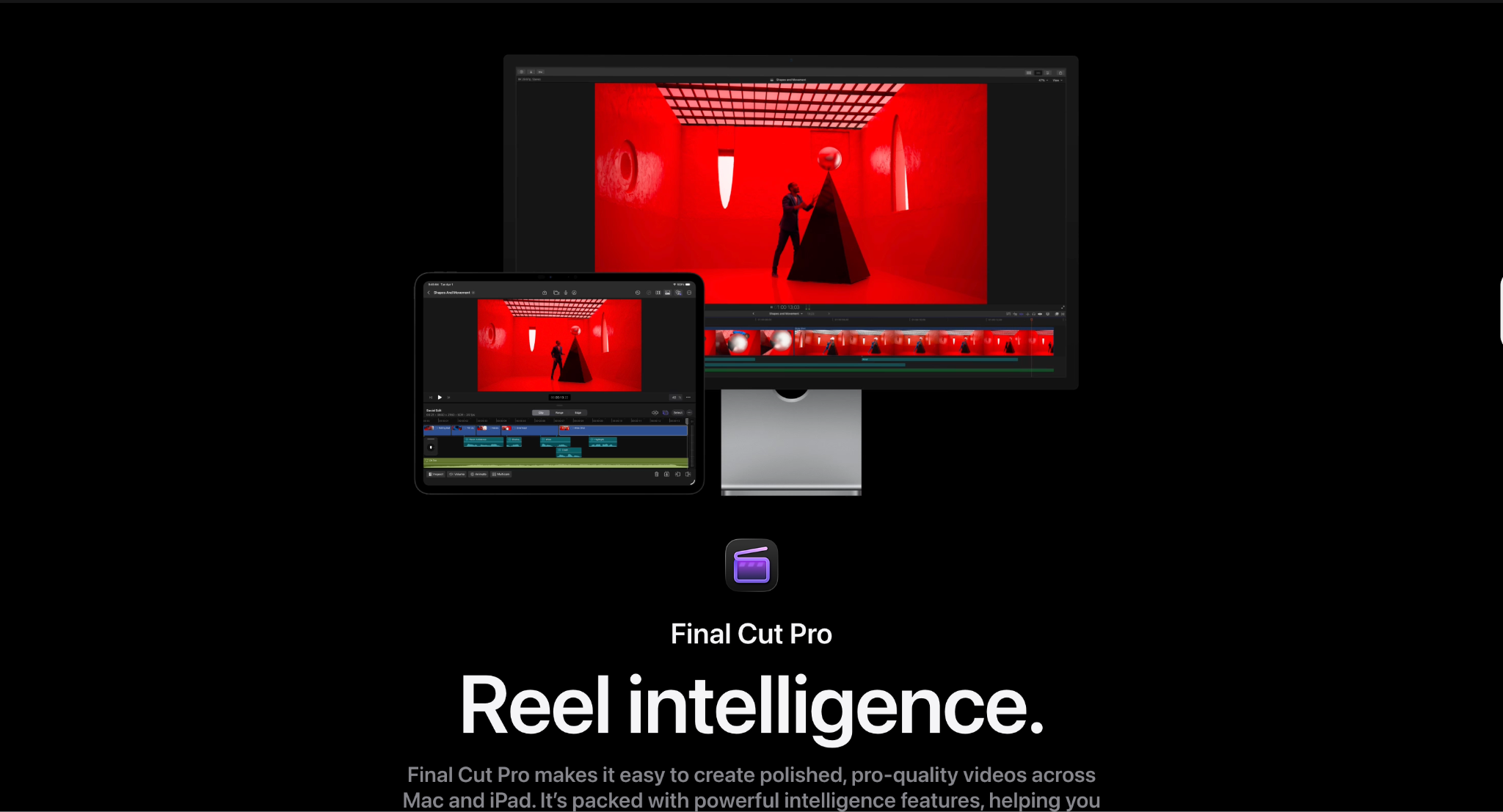
Final Cut Pro is still one of the best professional video editors for Mac, especially if you want a powerful Apple-native workflow. It is optimized extremely well for macOS and works great for long-form YouTube videos, documentaries, commercial work, and advanced editing projects.
Where Final Cut Pro stands out:
- optimized for Apple hardware
- advanced timeline editing
- strong performance on MacBook Pro
- professional effects and organization tools
- excellent for long-form editing
Best for:
Mac creators who want professional editing control and are comfortable learning a traditional editing workflow.
What to keep in mind:
It is much more powerful than what many everyday social creators actually need.
3. iMovie: Best free video editing software for Mac beginners
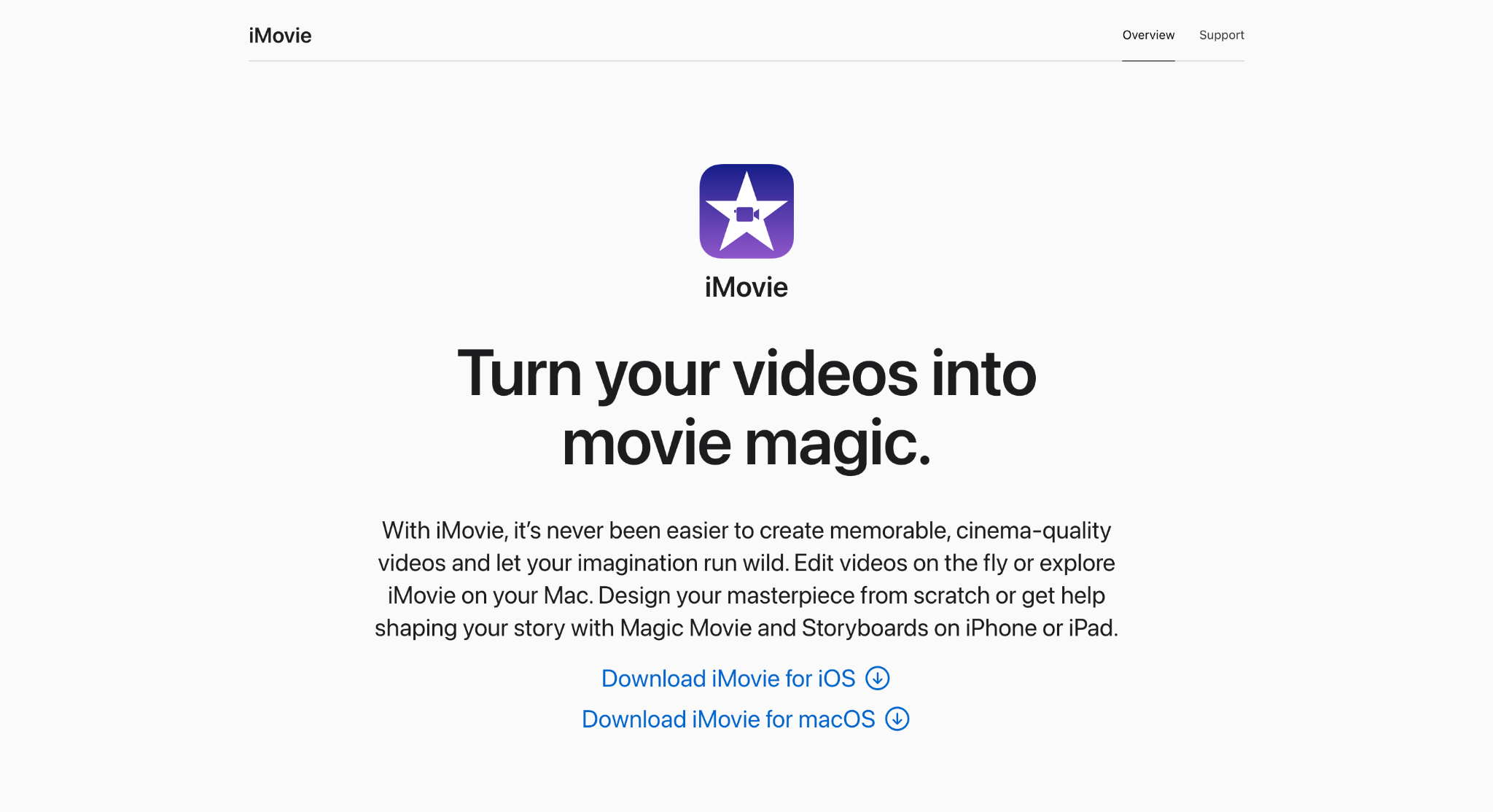
iMovie is still one of the easiest ways to start editing videos on a Mac. It comes free with macOS and gives beginners a clean, simple editing experience without feeling overwhelming.
Where iMovie stands out:
- free and built into Mac
- beginner-friendly interface
- simple trimming and transitions
- voiceovers and audio cleanup
- lightweight and easy to learn
Best for:
Beginners who want free video editing software for Mac without a steep learning curve.
What to keep in mind:
It starts feeling limited pretty quickly if you need AI features, advanced editing, or social-first workflows.
4. DaVinci Resolve: Best for color grading and advanced post-production
DaVinci Resolve is one of the most powerful professional editors available for Mac right now. It is especially famous for high-end color grading, audio tools, and professional finishing workflows.
Where DaVinci Resolve stands out:
- industry-level color grading
- advanced audio tools
- professional timeline editing
- strong visual effects workflow
- powerful free version
Best for:
Filmmakers, advanced editors, agencies, and YouTubers who want maximum creative control.
What to keep in mind:
It can feel overwhelming for beginners and requires a much heavier workflow than browser-based AI editors.
5. Adobe Premiere: Best for Adobe Creative Cloud users
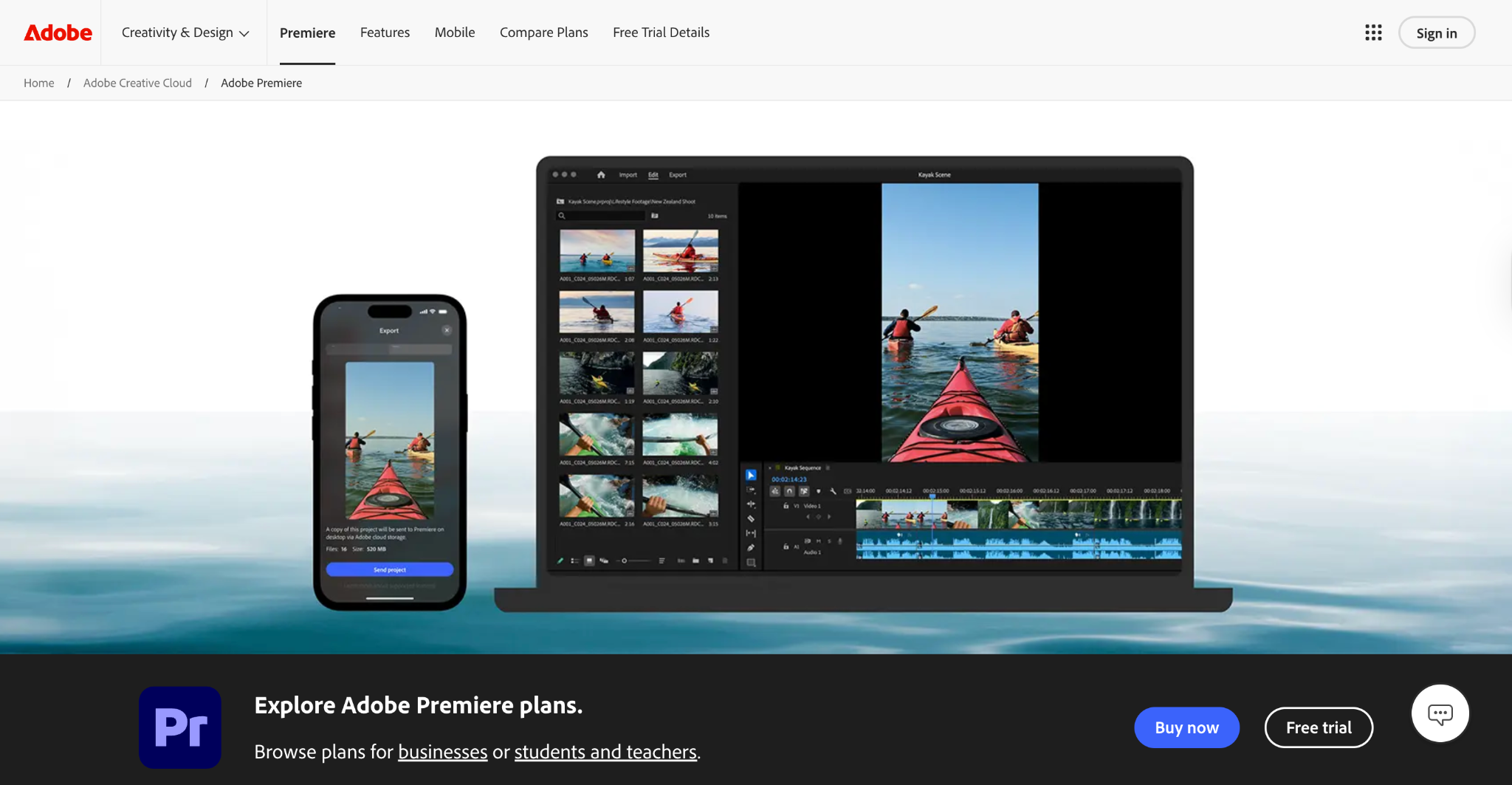
Adobe Premiere Pro is still one of the most widely used professional video editors, especially for creators already working inside the Adobe ecosystem. It connects well with Photoshop, After Effects, Firefly, and other Creative Cloud apps.
Where Premiere stands out:
- strong Creative Cloud integration
- advanced editing workflows
- AI-assisted features like Generative Extend
- professional effects and timeline control
- huge plugin ecosystem
Best for:
Professional editors, agencies, and creators are already using Adobe tools.
What to keep in mind:
The subscription pricing and learning curve can feel like overkill for quick social content workflows.
6. CapCut: Best for short-form social videos on Mac
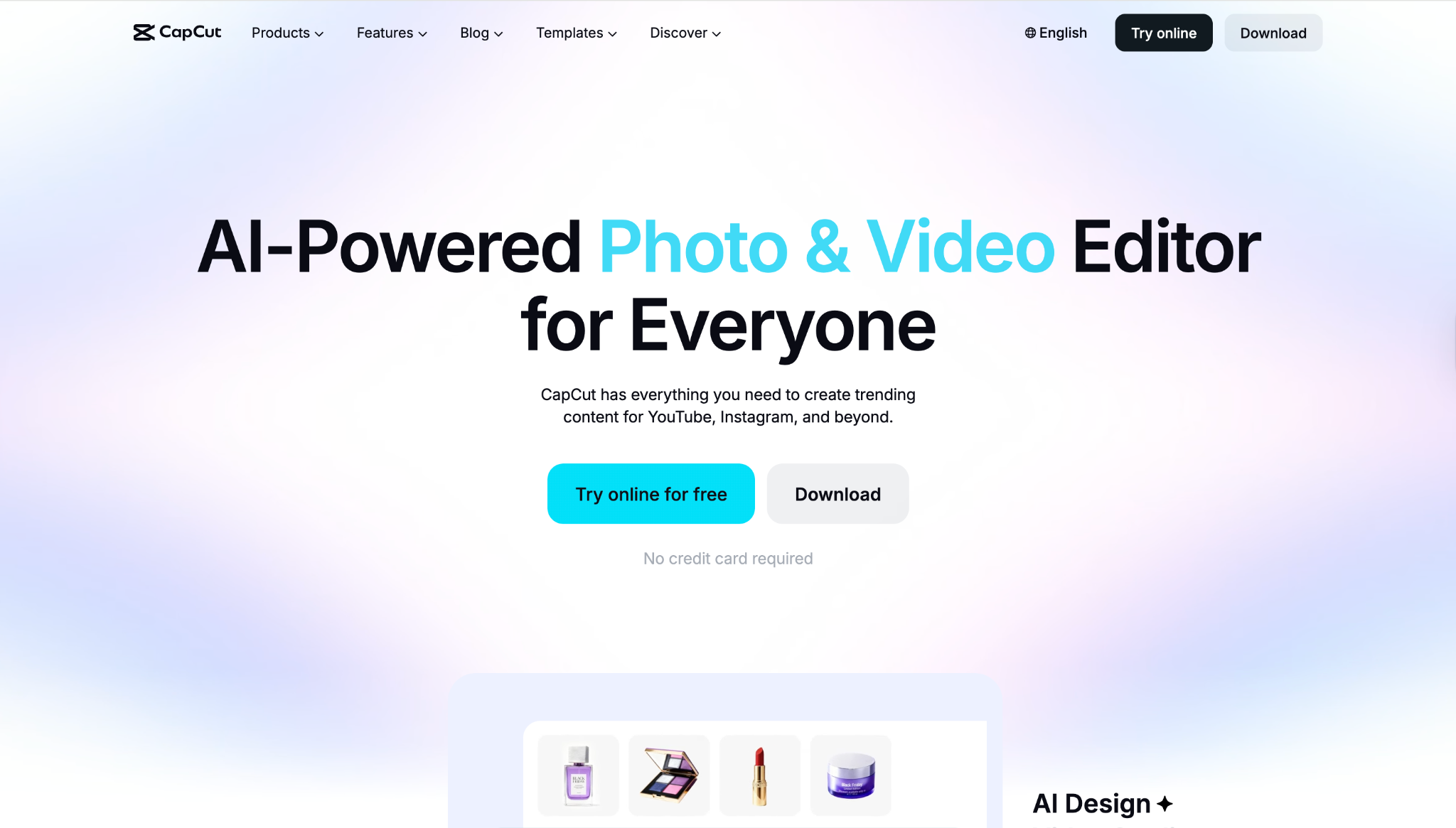
CapCut became popular for a reason. It makes short-form editing fast, simple, and very creator-friendly, especially for TikTok, Reels, and Shorts.
Where CapCut stands out:
- fast social editing workflows
- templates and effects
- AI captions
- vertical video editing
- simple desktop and web experience
Best for:
Creators making social-first content every day.
What to keep in mind:
It is less suited for advanced long-form editing or larger professional workflows.
7. Canva: Best for simple brand and marketing videos
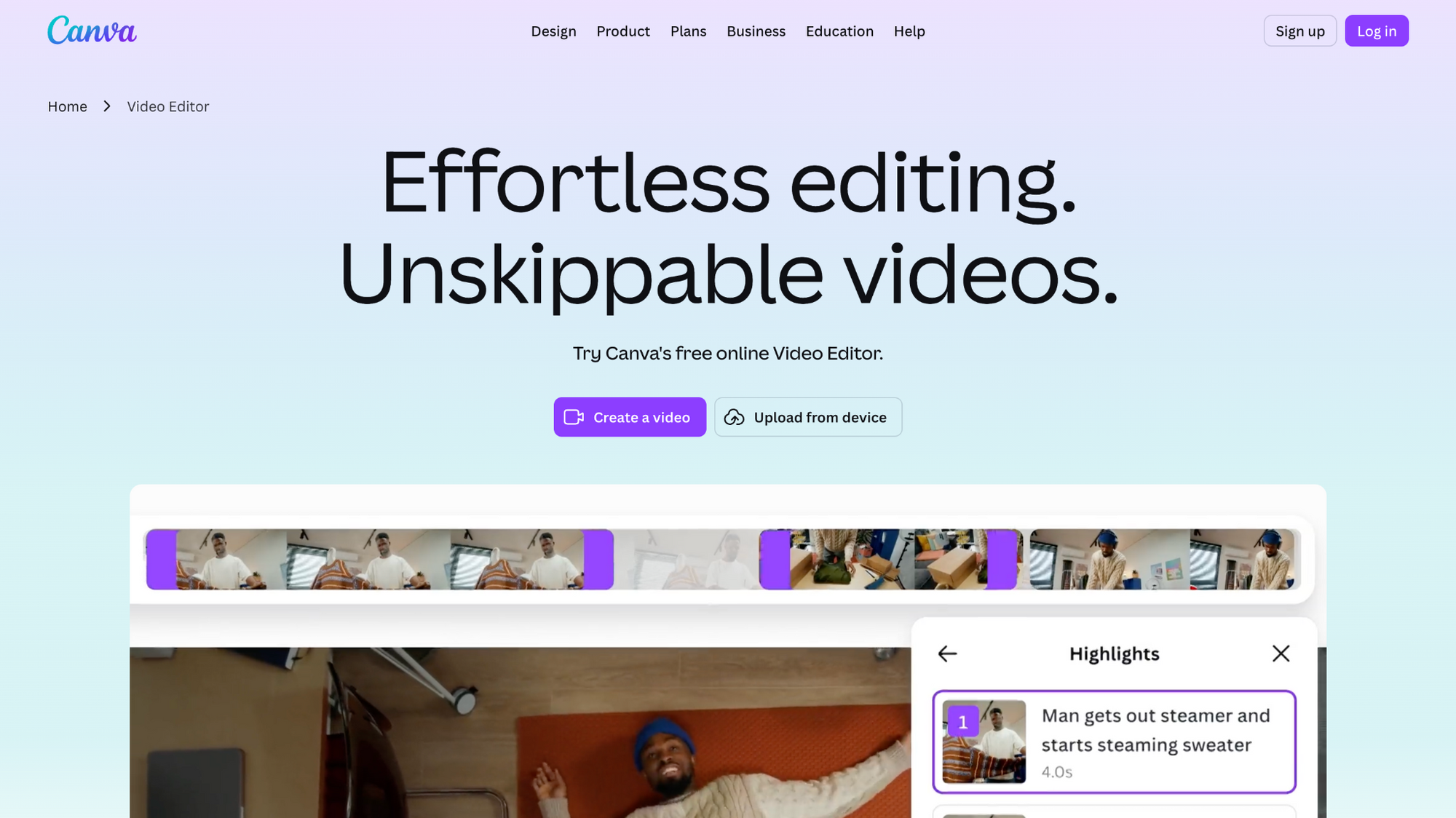
Canva is great for people who already use it for graphics, presentations, and social media assets. The video tools feel more like “content creation made easy” rather than traditional editing.
Where Canva stands out:
- brand kits and templates
- easy drag-and-drop workflow
- social media graphics and video together
- simple marketing video creation
- beginner-friendly design tools
Best for:
Small businesses, educators, startups, and marketers.
What to keep in mind:
It can feel limited if you want deeper editing control or advanced AI video workflows.
8. VEED: Best online video editor for captions and browser editing
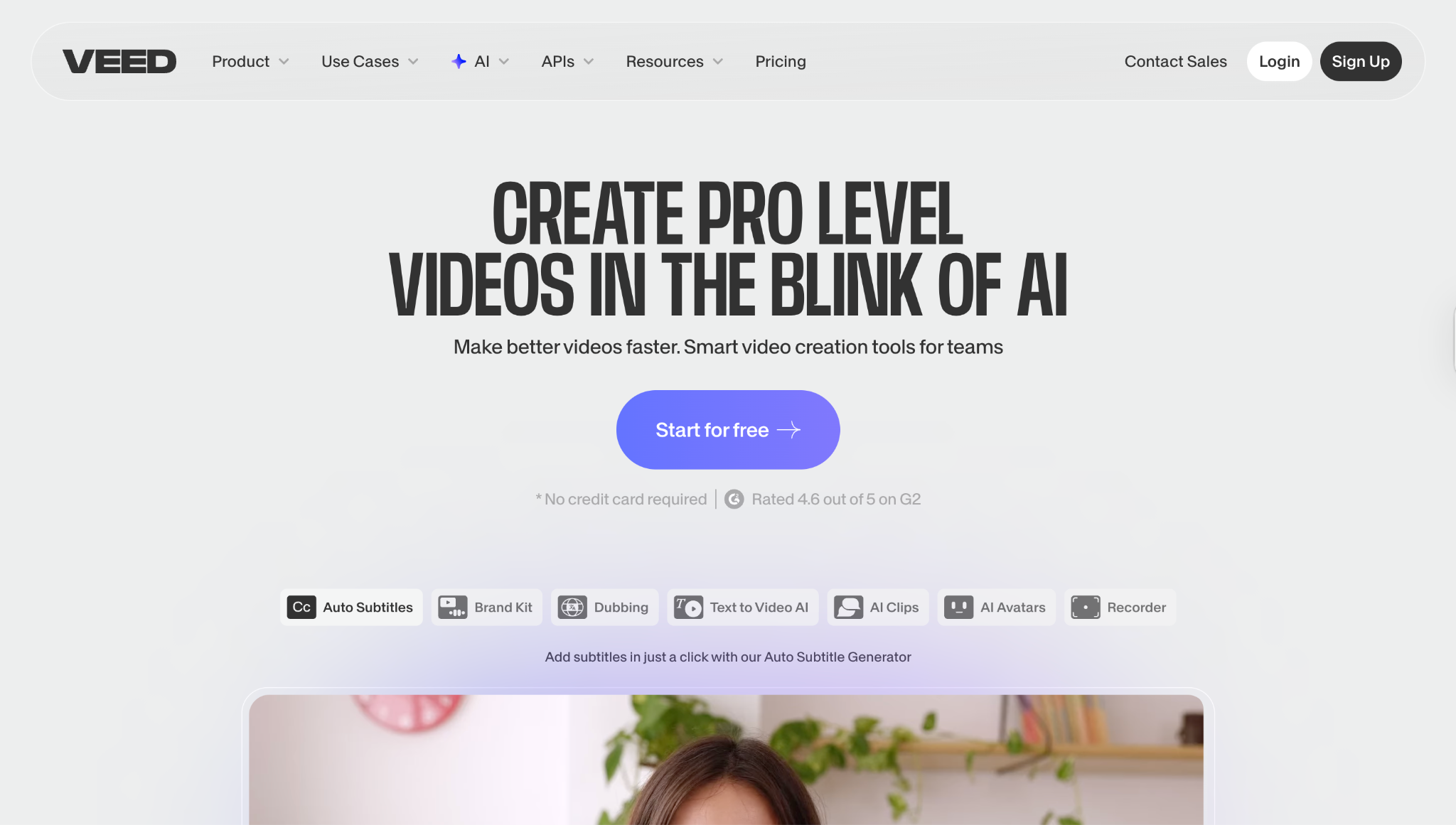
VEED is a browser-based video editor focused on fast editing, captions, graphics, and lightweight AI features. It works especially well for creators who want simple online editing without downloading heavy software.
Where VEED stands out:
- browser-based editing
- AI captions and subtitles
- quick social exports
- text and branding tools
- lightweight workflow
Best for:
Creators and marketers who want fast browser editing with captions.
What to keep in mind:
Async feels more complete if you want a broader AI-powered creation and editing workflow.
9. Descript: Best for text-based editing and talking-head content
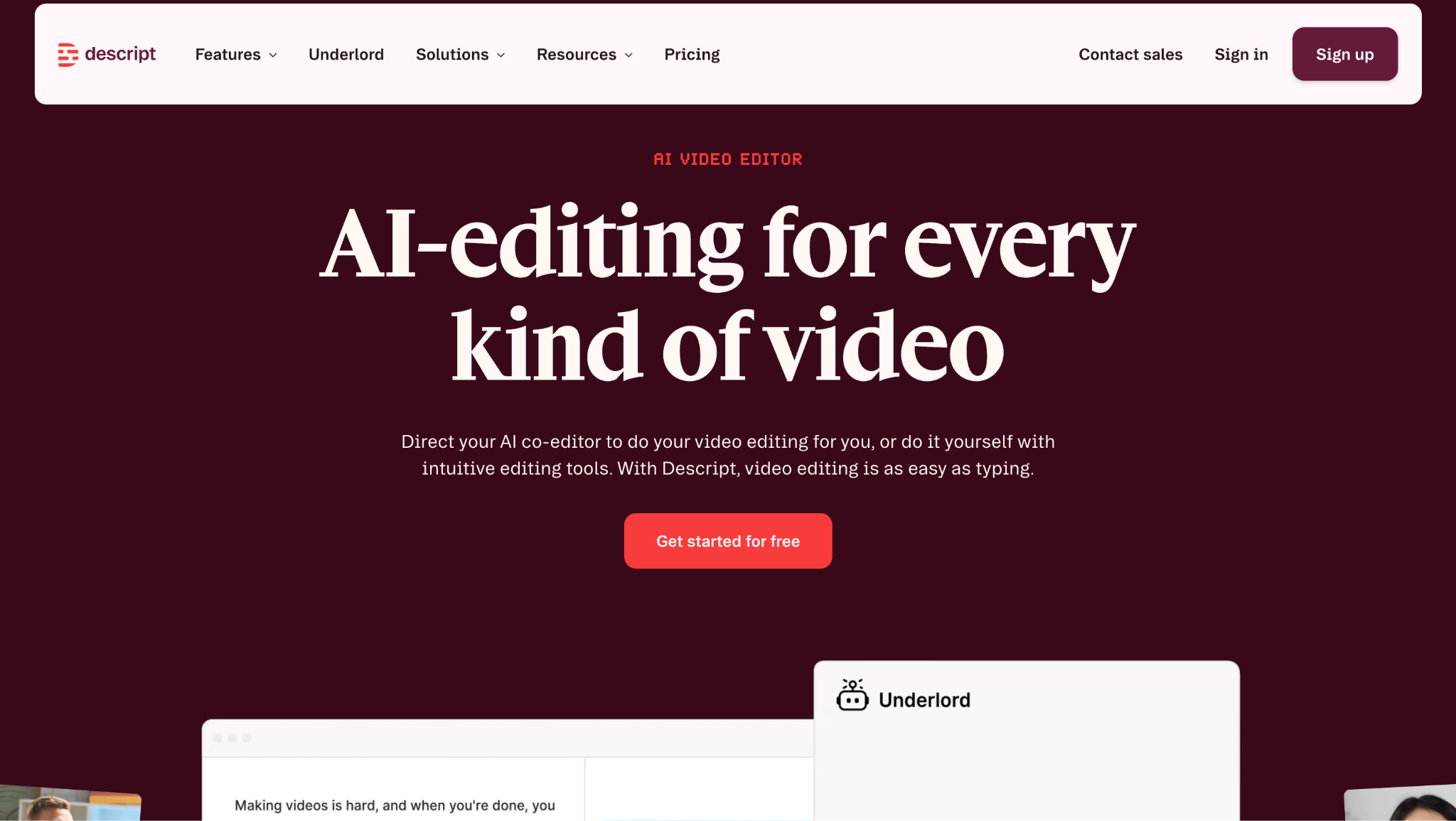
Descript takes a very different approach to editing. Instead of focusing heavily on timelines, it lets you edit videos by editing text transcripts.
Where Descript stands out:
- transcript-based editing
- podcast and interview workflows
- filler word removal
- screen recording tools
- great for educational content
Best for:
Podcasters, educators, course creators, and talking-head YouTubers.
What to keep in mind:
It is less focused on cinematic editing or AI-generated video workflows.
10. Runway: Best for experimental AI video generation
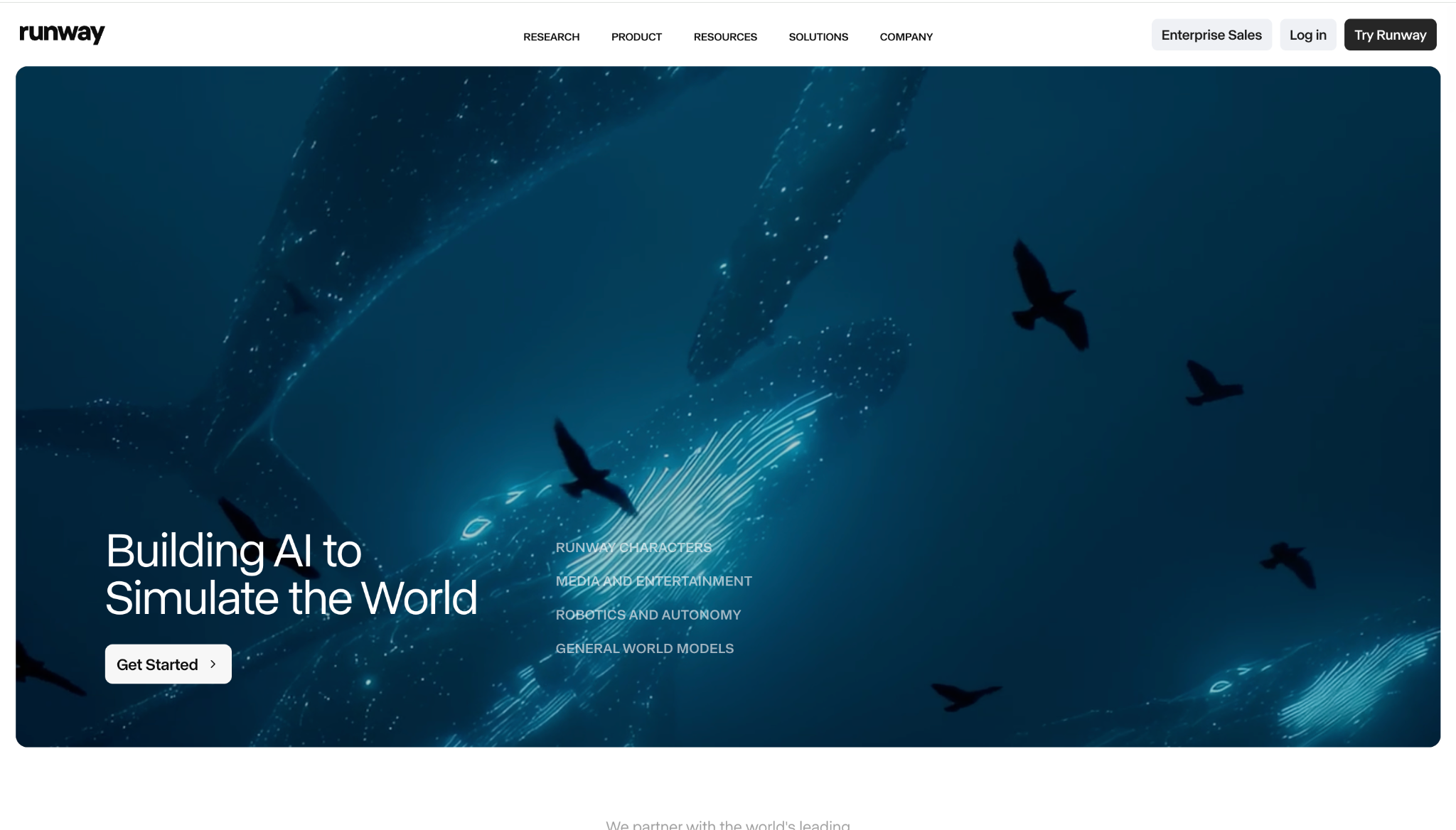
Runway is one of the most recognizable AI video generation platforms right now. It is especially useful for experimental visuals, concept generation, and creative AI video workflows.
Where Runway stands out:
- AI video generation
- text-to-video workflows
- creative visual experiments
- AI-powered effects
- fast concept creation
Best for:
Creative teams, designers, and AI-first creators are experimenting with generated video.
What to keep in mind:
It feels more like a creative AI generation tool than a complete everyday editing workflow for most creators.
How to choose the right Mac video editor for your workflow
The right video editor depends less on “which tool is best” and more on what kind of videos you actually make. A creator posting daily Reels does not need the same workflow as a filmmaker editing a documentary.
A simple rule honestly works pretty well here:
- If speed matters most → use AI-first or browser-based tools.
- If control matters most → use the desktop timeline editors.
- If you mainly make social content → prioritize captions, resizing, and exports.
- If you make long-form videos → prioritize organization and timeline control.
Online video editor for Mac vs desktop Mac video editing software
Online video editors are no longer the “cheap alternative.” For a lot of creators, they are simply faster.
Online editors are better when:
- you want quick social videos
- you need AI captions and resizing
- you use a MacBook Air
- you want browser-based workflows
- you collaborate with teams
- you do not want huge project files
Desktop editors are better when:
- you edit large 4K or 8K timelines
- you need advanced color grading
- you work with multicam footage
- you need plugins and pro audio tools
- you want maximum editing control
Honestly, most creators today use a mix of both. AI tools for speed. Professional editors for finishing.
AI video editor for Mac: what features actually matter?
Not every AI feature is useful. Some genuinely save time. Others feel more like a demo.
The most useful AI video editing features right now are:
- AI captions and subtitles
- transcript/text-based editing
- auto-resizing for social platforms
- silence removal and cleanup
- prompt-based editing
- image-to-video and text-to-video
- repurposing long videos into clips
Cool sometimes, but not always essential:
- AI avatars
- style transfer
- fully generated b-roll
- AI voice cloning
The best AI-powered video editing software helps you move faster without taking creative control away from you.
Best video editing software for MacBook Air vs MacBook Pro
MacBook Air users usually care more about lightweight workflows, browser editing, and not overheating their laptop halfway through exporting a Reel.
Best for MacBook Air:
- Async
- iMovie
- Canva
- VEED
- CapCut
- Descript
MacBook Pro users can comfortably handle heavier professional workflows like:
- Final Cut Pro
- DaVinci Resolve
- Adobe Premiere
- Runway + pro editing combinations
That said, even MacBook Pro users often prefer browser-based AI workflows for fast content creation because they are simply more efficient.
Best Mac video editing software by creator type
The “best” Mac video editor changes a lot depending on what you actually create. A YouTuber editing hour-long videos needs a completely different workflow than someone posting three Instagram Reels a day.
For social media creators
If you make TikToks, Shorts, or Reels constantly, speed matters more than perfect cinematic editing.
Best picks:
These tools are strongest for captions, vertical exports, fast cuts, templates, and AI-powered social workflows.
For marketers and startups
Marketing teams usually need fast iteration, brand consistency, and quick publishing.
Best picks:
- Async
- Canva
- VEED
- Adobe Premiere
These workflows work especially well for product videos, launch campaigns, demos, and ads.
For YouTubers
YouTubers usually need stronger editing workflows, especially for long-form content.
Best picks:
- Final Cut Pro
- DaVinci Resolve
- Adobe Premiere
- Descript
- Async
Async becomes especially useful for repurposing long videos into Shorts and social clips.
For educators and course creators
Educational content benefits from captions, transcript editing, and clean workflows more than flashy effects.
Best picks:
These tools are great for tutorials, explainers, webinars, and online courses.
For AI creators
AI creators care about generation workflows as much as editing.
Best picks:
These platforms help with text-to-video, image-to-video, prompt-based workflows, and editing generated content.
How we’d edit a video on Mac with Async
Async makes Mac video editing feel less like starting from a blank timeline and more like building from an idea. For this test, we used a simple social video concept and moved through the workflow step by step, from prompt to polished export.
Step 1: Open Async in your Mac browser
First, open Async in Safari or Chrome on your Mac. Since it works in the browser, you do not need to download a heavy desktop app or clear half your storage just to start editing.
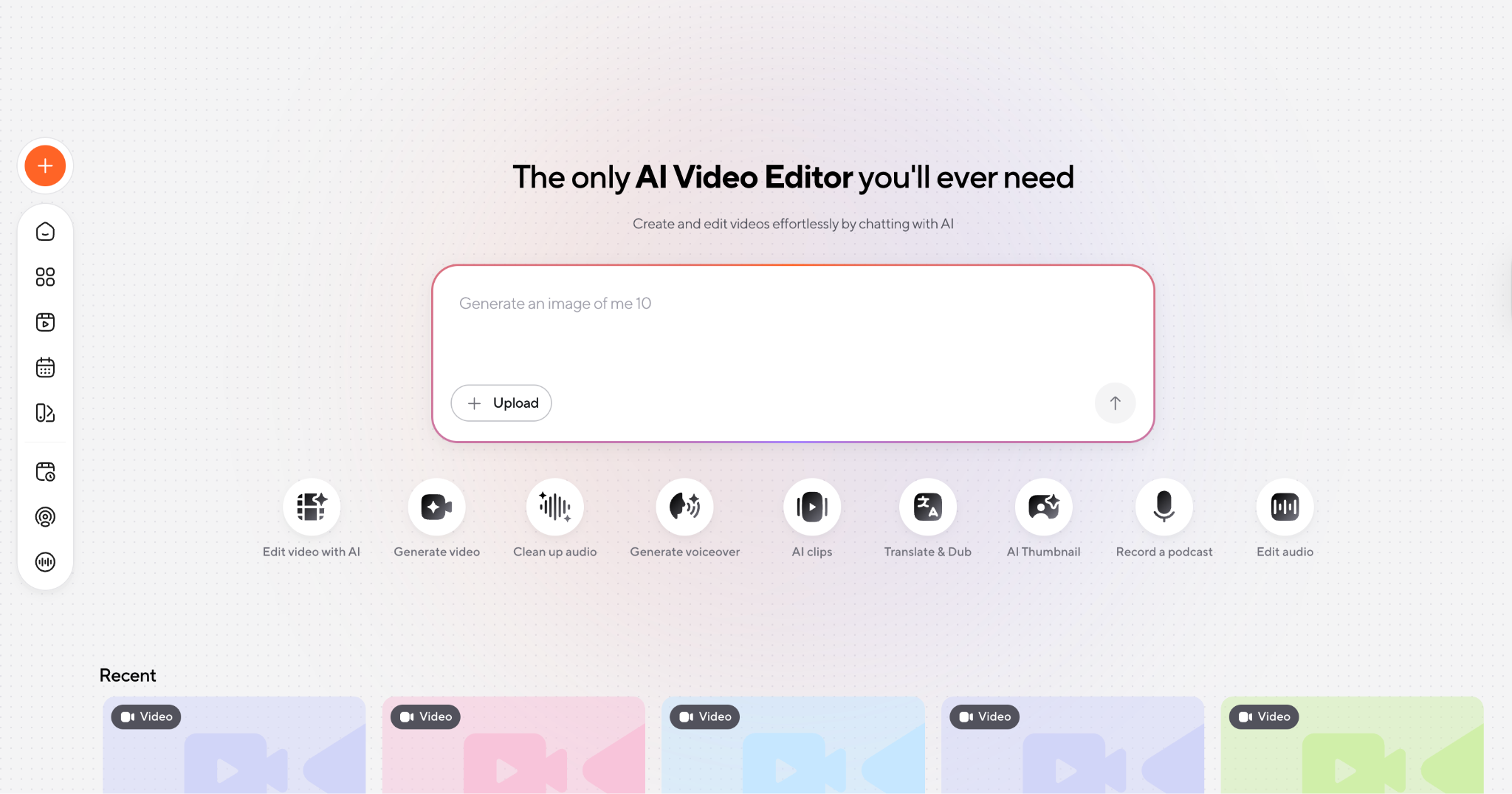
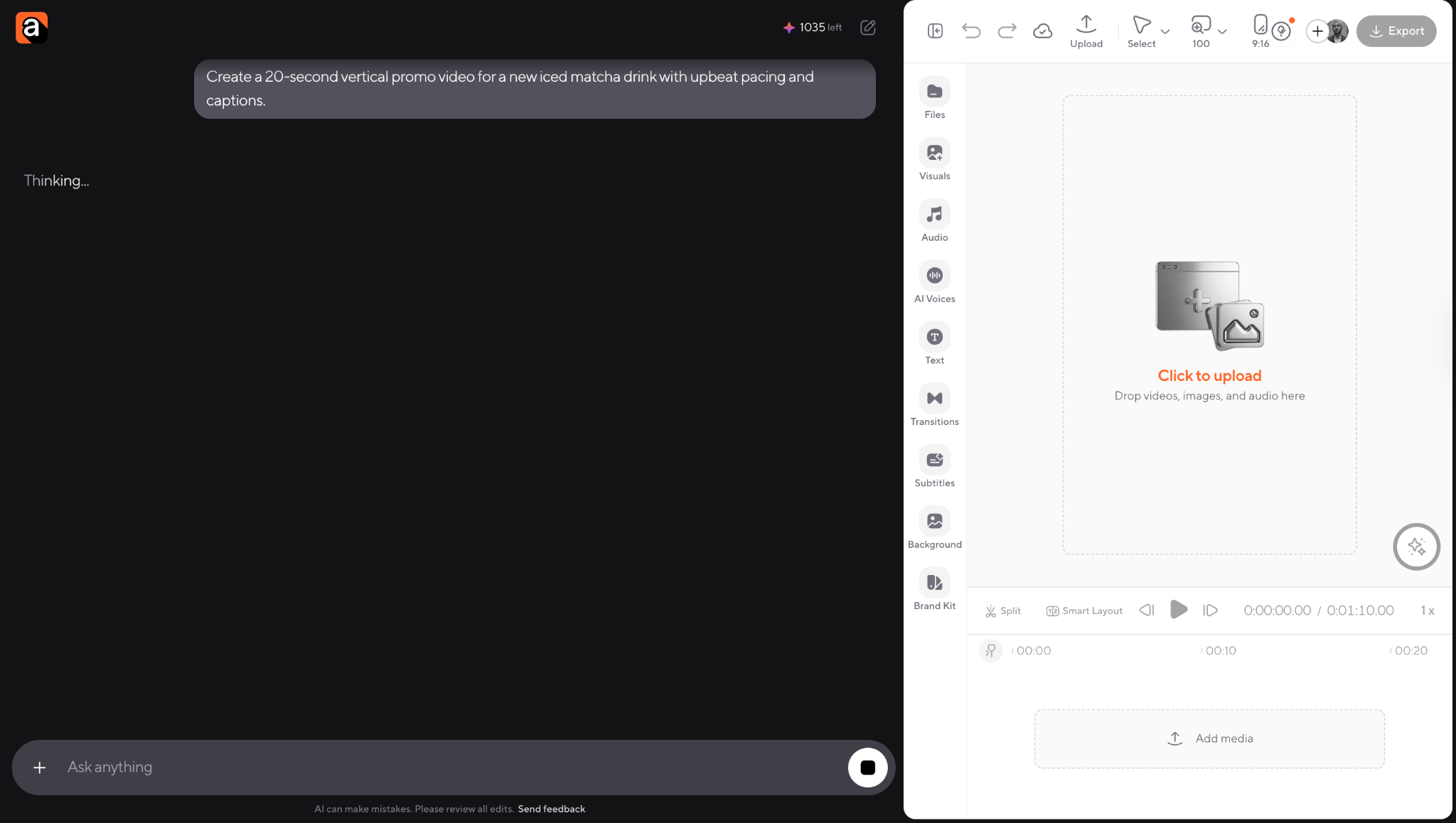
Step 2: Start with a prompt or upload
Next, start with a video idea, image, or existing clip. For example:
“Create a 20-second vertical promo video for a new iced matcha drink with upbeat pacing and captions.”
This gives Async a clear direction before you start editing.
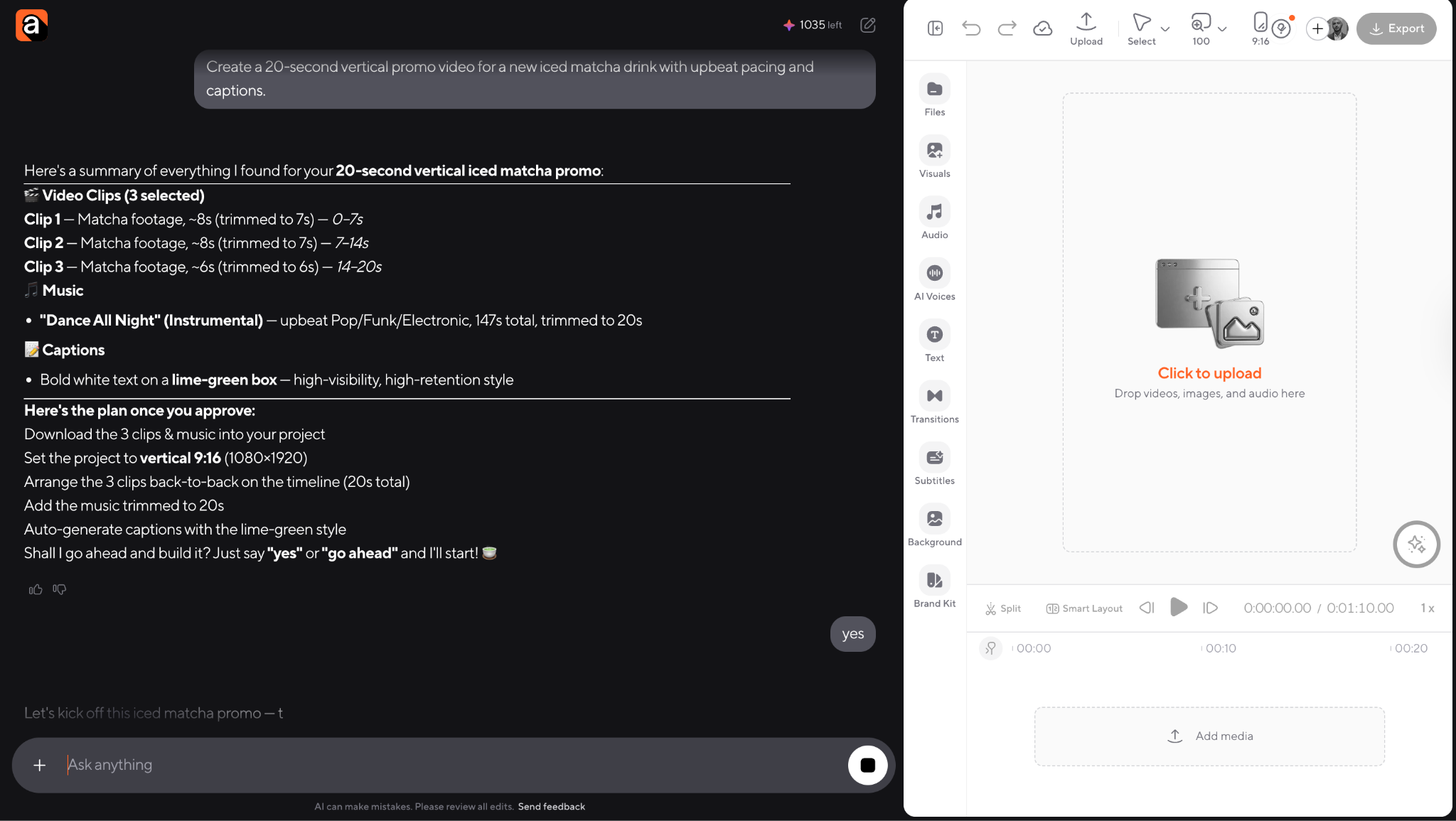
Step 3: Let Async build the first draft
Instead of manually building every timeline step, let Async help prepare the first version. This is where the workflow starts to feel faster than a traditional Mac video editor.
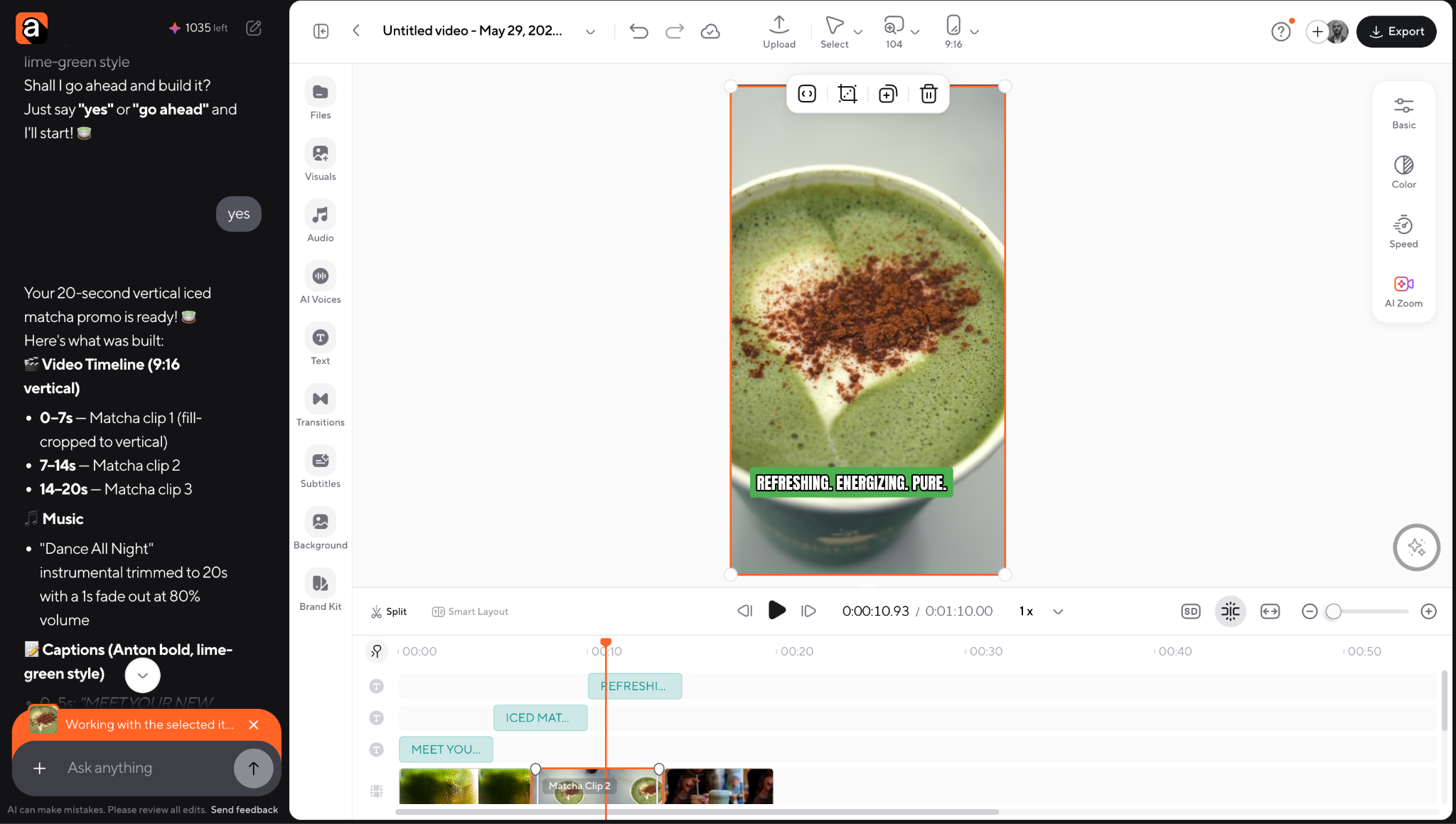
Step 4: Edit and polish the video
Once the first draft is ready, adjust the details. You can refine captions, trim pacing, resize for vertical platforms, add text, and polish the overall look.
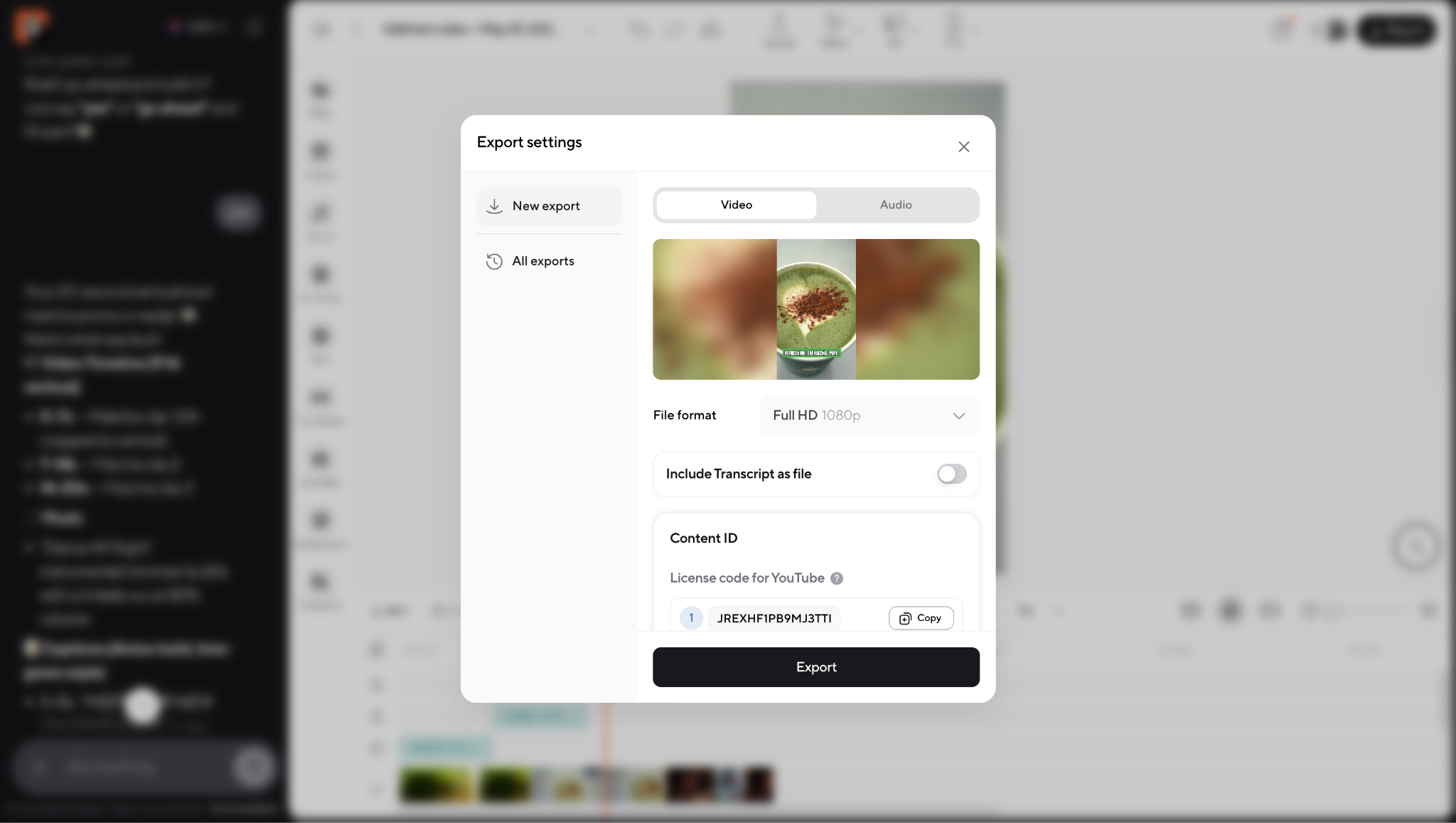
Step 5: Export the final video
Finally, preview the result and export the finished version. This is the key difference between a basic AI generator and a usable video editor: you are not just creating a clip, you are preparing something that is ready to post.
Final Cut Pro alternatives for Mac: when should you use an AI editor instead?
Final Cut Pro is excellent. But not everyone actually needs a professional timeline editor.
An AI-powered editor may be a better choice if:
- you mainly create social videos
- you want captions automatically
- you prefer prompt-based workflows
- you want text-to-video or image-to-video
- you need fast content repurposing
- you collaborate with a team
- you do not want to learn advanced editing software
Final Cut Pro is still stronger for:
- complex editing timelines
- professional finishing
- advanced color work
- large productions
- offline workflows
For a lot of creators, the “best Final Cut Pro alternative” is simply the tool that removes unnecessary complexity.
Free video editing software for Mac: what can you actually get for free?
Free video editing software is great for testing workflows, but there is usually some kind of tradeoff.
iMovie is still the best true free native video editor for Mac. It handles simple editing surprisingly well for beginners.
Most free online editors usually limit things like:
- exports
- resolution
- AI credits
- storage
- watermarks
- premium assets
Free plans are useful for learning and experimenting, but serious publishing workflows often outgrow them pretty quickly.
The Mac creator’s checklist before choosing a video editor
Before choosing a Mac video editor, ask yourself:
- Do I need AI generation or only editing?
- Do I make vertical videos, horizontal videos, or both?
- Will I need captions on almost every video?
- Do I work alone or with a team?
- Is my Mac powerful enough for desktop editing?
- Am I making long-form or short-form content?
- Do I need brand templates?
- Do I care about commercial usage rights?
- Do I want a timeline workflow or a prompt-based workflow?
The answers usually make the right editing software much more obvious.
Best overall Mac video editing software: quick recommendations
There is no single “best” video editor for every Mac creator anymore, and honestly, that’s a good thing.
If you want fast AI-powered workflows for social content, marketing videos, tutorials, or AI-generated projects, Async is one of the strongest all-around choices right now. Final Cut Pro is still the best professional Apple-native editor, while DaVinci Resolve remains the top pick for advanced color grading and post-production workflows. Adobe Premiere is a great fit for creators already using Creative Cloud tools.
For more creator-specific workflows:
- iMovie is still the easiest free Mac video editor for beginners.
- CapCut works best for fast TikTok, Reels, and Shorts editing.
- Canva is great for branded content and simple marketing videos.
- Descript is excellent for transcript-based editing and talking-head content.
- Runway stands out for experimental AI video generation.
- VEED is a solid browser-based editor for captions and lightweight editing.
The biggest shift is that Mac creators no longer need to choose between “easy” and “powerful.” Modern browser-based and AI-powered editors are making video creation much faster, more flexible, and way less overwhelming.
FAQs about video editing software for Mac
What is the best video editing software for Mac?
The best Mac video editor depends on your workflow. Async is great for AI-powered online editing, Final Cut Pro is best for professional Apple-native editing, iMovie is best for free beginner editing, and DaVinci Resolve is strongest for advanced post-production.
What is the best free video editing software for Mac?
iMovie is still the best free built-in video editor for Mac beginners. It handles trimming, transitions, audio cleanup, and basic editing very well. Online AI editors may offer free plans too, but they usually come with export limits, watermarks, or restricted AI features.
What is the best AI video editor for Mac?
Async is one of the strongest AI-powered video editors for Mac creators right now because it combines generation, editing, captions, resizing, and publishing workflows in the browser instead of forcing users into multiple separate tools.
Can I edit videos online on a Mac?
Yes. Browser-based editors like Async, VEED, Canva, CapCut, and Descript work very well on Mac. Online editors are especially useful for fast social content, AI workflows, captions, and collaborative editing.
Is Final Cut Pro better than online video editors?
Final Cut Pro is better for advanced editing, large projects, professional finishing, and complex timelines. Online editors are often better for speed, AI-powered workflows, captions, quick publishing, and social content creation.
Is MacBook Air good enough for video editing?
Yes, especially for browser-based editing and lighter workflows. Tools like Async, Canva, VEED, CapCut, and iMovie work well on MacBook Air. For heavier professional editing, a MacBook Pro is usually more comfortable.
What video editor do YouTubers use on Mac?
Many YouTubers use Final Cut Pro, DaVinci Resolve, Adobe Premiere, Descript, and Async depending on their workflow. Long-form creators often prefer professional timeline editors, while social-first creators prefer faster AI-powered tools.
What is the easiest video editor for Mac beginners?
iMovie is still the easiest native Mac editor for beginners. Async is also very beginner-friendly because it simplifies generation, captions, editing, and exports inside one browser-based workflow.
Can I use AI to edit videos on a Mac?
Yes. AI video editing on Mac is now very common. Depending on the tool, AI can help generate videos, create captions, resize clips, remove silence, clean audio, generate voiceovers, and edit videos faster.
What is the best Final Cut Pro alternative for Mac?
The best Final Cut Pro alternative depends on your workflow. Async is excellent for AI-powered online creation and editing, DaVinci Resolve is strongest for advanced post-production, and CapCut works well for fast, short-form social editing.
PakarPBN
A Private Blog Network (PBN) is a collection of websites that are controlled by a single individual or organization and used primarily to build backlinks to a “money site” in order to influence its ranking in search engines such as Google. The core idea behind a PBN is based on the importance of backlinks in Google’s ranking algorithm. Since Google views backlinks as signals of authority and trust, some website owners attempt to artificially create these signals through a controlled network of sites.
In a typical PBN setup, the owner acquires expired or aged domains that already have existing authority, backlinks, and history. These domains are rebuilt with new content and hosted separately, often using different IP addresses, hosting providers, themes, and ownership details to make them appear unrelated. Within the content published on these sites, links are strategically placed that point to the main website the owner wants to rank higher. By doing this, the owner attempts to pass link equity (also known as “link juice”) from the PBN sites to the target website.
The purpose of a PBN is to give the impression that the target website is naturally earning links from multiple independent sources. If done effectively, this can temporarily improve keyword rankings, increase organic visibility, and drive more traffic from search results.